
Filelinked on PC: Run the Code-Based File Downloader
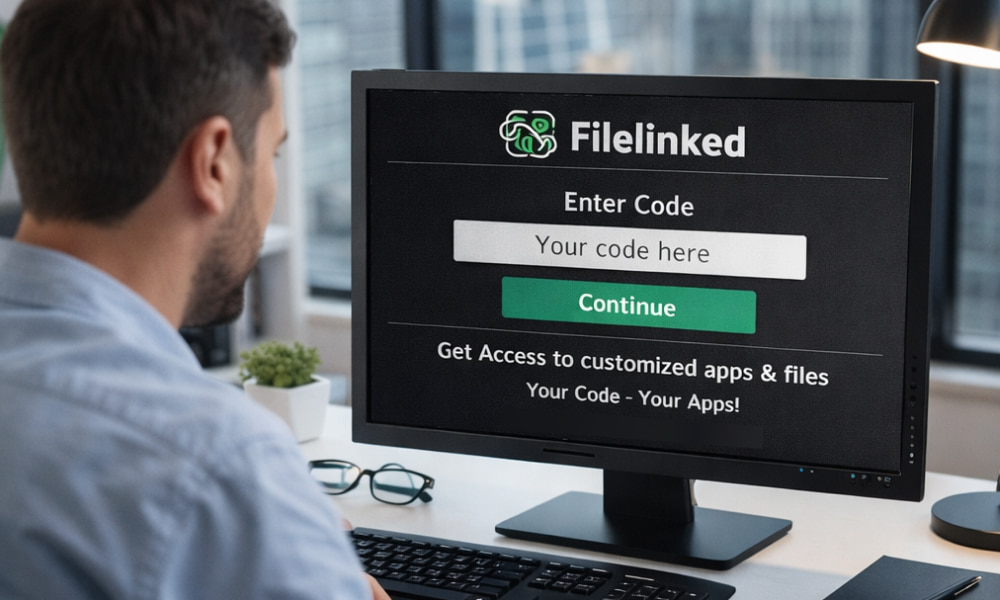
Install Filelinked App on Windows PC
Download NowIf you’ve heard about the famous code-based downloader that people used on streaming sticks, you might be wondering how the same workflow translates to a desktop setup. The good news is that Windows can handle the experience well, as long as you choose a safe method and understand what is (and isn’t) officially supported. Before you begin, keep one important reality in mind: the original service has been widely reported as discontinued, and many “download” pages are unofficial mirrors, so it’s worth being extra cautious with sources and security.
Using Filelinked on PC
Because Windows doesn’t run Android apps natively in the same way a phone does, most people use one of these approaches:
- Android emulator (most common): you run a virtual Android device and install the APK inside it.
- Screen mirroring: you control the app from your phone but view it on your monitor.
- Device-to-PC workflows: you download on Android, then transfer files to Windows when needed.
“Treat any unofficial APK source like a public USB drive: useful sometimes, but only after you’ve checked what’s on it.”
Pick a Safe Setup Strategy
For most users, an emulator is the easiest balance between convenience and control. You can isolate the app from your main system, and you can remove the emulator entirely if anything feels suspicious. Android Studio’s emulator documentation is also helpful for understanding how networking and connectivity behave in a virtual device.
Recommended checklist (quick and practical)
- Use an emulator from a well-known vendor.
- Keep Windows Security (or your antivirus) enabled.
- Prefer sources with clear versioning and community scrutiny, not random “one-click” installers.
- Scan any APK you download before installing it.
- Use a throwaway Google account in the emulator if sign-in is required.
Install and Launch Inside an Emulator
On a Windows machine, many people try Filelinked on PC through an Android emulator so the interface behaves like it would on a phone or TV device. To reduce risk, the path for Filelinked download for PC usually involves downloading an APK file separately and installing it into the emulator rather than trusting bundled installers from unknown sites.
In most emulators, you can download Filelinked for PC by dragging the APK into the emulator window or using the emulator’s built-in “Install APK” feature, then completing the on-screen prompts. After it’s installed, you’ll typically see the Filelinked app on PC in the emulator’s app drawer, where it can be opened just like any other Android application.
Understand Codes, Libraries, and Trust
The code-based model is simple: a code points to a curated list of files. The safety part is not always simple, because lists can include outdated apps, repackaged APKs, or files that don’t match their description.
- Prefer codes from creators you can verify.
- Avoid “too good to be true” bundles (especially “premium unlocked” claims).
- Check file size, version notes, and upload history when available.
- When possible, compare app signatures or download from official publishers instead.
Downloading Files to Windows (Without the Headache)
If you want the files on your PC (not just inside the emulator), you have a few options:
| Method | Best for | Notes |
|---|---|---|
| Shared folders | Everyday transfers | Many emulators support a shared directory you can access from both Android and Windows. |
| ADB file transfer | Precise control | You can pull files from the emulator to your PC using ADB commands. |
| Cloud drive | Cross-device access | Upload from Android, then download from Windows, but watch permissions and privacy. |
Common Problems and Fast Fixes
1) The app won’t install
- Make sure the emulator Android version matches the APK’s requirements.
- Enable “Install unknown apps” inside the emulator settings if needed.
- Try a different APK build if the one you have is corrupted or incomplete.
2) Downloads are slow or fail
- Switch the emulator network mode if it supports options.
- Disable any overly aggressive VPN/ad-blocker settings in the emulator.
- Confirm your Windows firewall isn’t blocking the emulator process.
3) Files are stuck inside the emulator
- Use a shared folder feature first, since it’s simplest.
- For stubborn cases, ADB “pull” is the most reliable approach.
About Free Downloads and Realistic Expectations
While people still search Filelinked for PC download as a shortcut, it’s smarter to treat this method as a convenience layer and still prefer official sources for important apps whenever possible. If you come across a page promising Filelinked download for PC for free, remember that “free” can sometimes mean “unverified,” so add scanning and careful source checks to your routine.
Final Setup Notes
For a clean start, you can install Filelinked on PC by keeping it inside an emulator sandbox, limiting permissions, and exporting only the files you truly need to Windows. If you’re doing this mainly to manage app collections, consider researching modern alternatives too, since multiple sources note that the original platform was shut down and may not be dependable long-term.